

How to Check a Clip from a Free Image to Video Generator Before It Goes on Your Website
A reproducible browser checklist for measuring a short clip and testing playback before you embed it. Includes a local Chrome test with a synthetic sample.

Flyne AI
Author & Contributor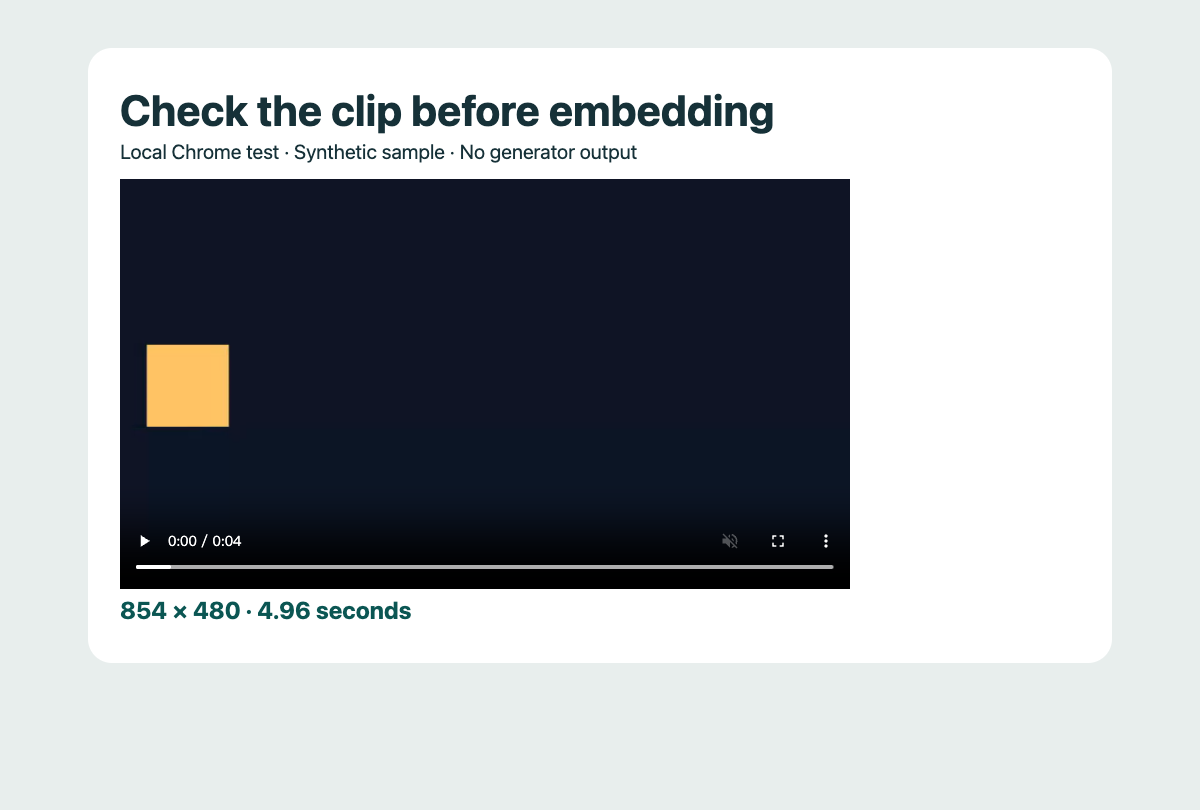
You download a short video, open it in a player, and it looks fine. Then you put it on a web page. The preview starts at the wrong moment, the video takes up more space than expected, or the clip keeps moving when a visitor switches on their device’s reduced motion preference. A desktop player can confirm that a file opens. A browser test can show how that file behaves inside the page people will actually use.
Run three checks before you ship the clip. Read the media’s dimensions and duration, confirm playback starts when you intend it to, and see what happens when the visitor changes their motion preference. The same page can serve as a test bench for each replacement file.
This article was prepared by the Flyne AI brand team with AI assistance. The browser observations below came from a local test using a synthetic WebM with a moving rectangle. That file was made in the browser for the test. It was not downloaded from Flyne AI.
Read the clip before making layout decisions
Put the file and a still preview in a local test page. Use a still you can show publicly and that represents the subject even when the clip never plays. Add controls to the test player and leave out autoplay. With preload="metadata", the browser has a hint that the page needs the clip’s metadata before the visitor plays it. Browsers can handle that hint differently, so check what your browser actually does when the page loads.
Wait for the metadata loading event before reading the properties. videoWidth and videoHeight describe the video itself. The box you see on the page can be a different size. Read both when you are deciding whether a file will work inside a card, an article figure, or a wide header. A file that looks good in one box may change the crop or leave empty space when another layout scales it.
Here is a small inspection panel. Assign the media source after setting up the listeners so the same code can be used on a page where media loads quickly.
<video id="preview" controls muted playsinline preload="metadata"
       poster="poster.jpg"></video>
<output id="media-info"></output>

<script>
  const preview = document.querySelector('#preview');
  const info = document.querySelector('#media-info');

  function showMetadata() {
    const seconds = Number.isFinite(preview.duration)
      ? preview.duration.toFixed(2) + ' seconds'
      : 'duration unavailable';

    info.textContent =
      preview.videoWidth + ' × ' + preview.videoHeight + ' · ' + seconds;
  }

  preview.addEventListener('loadedmetadata', showMetadata);
  preview.addEventListener('durationchange', () => {
    if (preview.readyState >= HTMLMediaElement.HAVE_METADATA) {
      showMetadata();
    }
  });
  preview.addEventListener('error', () => {
    info.textContent = 'The browser could not load this video.';
  });
  preview.src = 'sample.webm';
</script>
If metadata is missing, inspect the request in DevTools and open the file locally. A broken path or a response that serves something other than the media file can look like an encoding problem from the page alone. If dimensions appear but the duration is unavailable, check whether the browser reports a finite value later and verify the file in a separate media inspector before making a duration claim.
Separate the first click from the motion preference
Start with a static poster and a visible play control. Reload and confirm the clip stays still. Click Play and confirm that the intended file runs and that the player reflects the chosen sound setting. A muted preview is useful for a focused test, but that does not tell you whether the file has an audio track or whether a visitor would hear sound after using their controls. Check those separately when audio matters.
If the page should pause moving previews when the reduced motion preference changes, add a listener. A CSS media query can select less animated styles. To stop an existing media element, the page needs to call the player’s pause function or otherwise implement that behavior explicitly.
const motionPreference = matchMedia('(prefers-reduced-motion: reduce)');

motionPreference.addEventListener('change', (event) => {
  if (event.matches) preview.pause();
});
In this design, a visitor who actively presses Play can still watch. The page does not resume a clip on its own when the preference changes back. If you choose a different policy, document it so your teammates know what the page should do on load and during playback.
Record what happened in one browser
The core checks ran in Chrome 158 using the local synthetic fixture. After metadata loaded, Chrome reported 854 × 480 pixels and approximately 4.96 seconds. The video played after a user click. When I emulated the reduced motion setting while it was playing, the page’s listener paused the player. A second deliberate click resumed playback. The test harness used a custom test button to trigger playback, so separately test your final page’s native controls if you use those. This result covers one sample, browser, and implementation.
For a handoff, log the file name, browser and version, observed dimensions, duration, initial playback state, and what happened during the preference change. If the page will be used on phones, repeat the check on the devices and browsers you support. Inspect the paused poster, the controls, and the intended crop. If the image contains a readable label, check that it survives the smallest viewport.
Then test the clip you plan to publish
If you need a trial asset from an illustration, Flyne AI’s free image to video generator describes a MiniMax H3 image-guided workflow using an opening and closing frame. The free page lists a five-second, 480p output, with no signup required. It also describes a verification step and possible queue wait. Use images you have permission to upload and pick one clear action so the clip is easy to inspect.
Download the actual file and run the same three checks again. The generator’s published specifications are useful for choosing the test. Measure the file you receive before you list its properties. For the final page, keep a static fallback and make the play behavior easy to explain. That gives a reviewer something they can reproduce when you change the clip.